1. The Architecture: Microservices
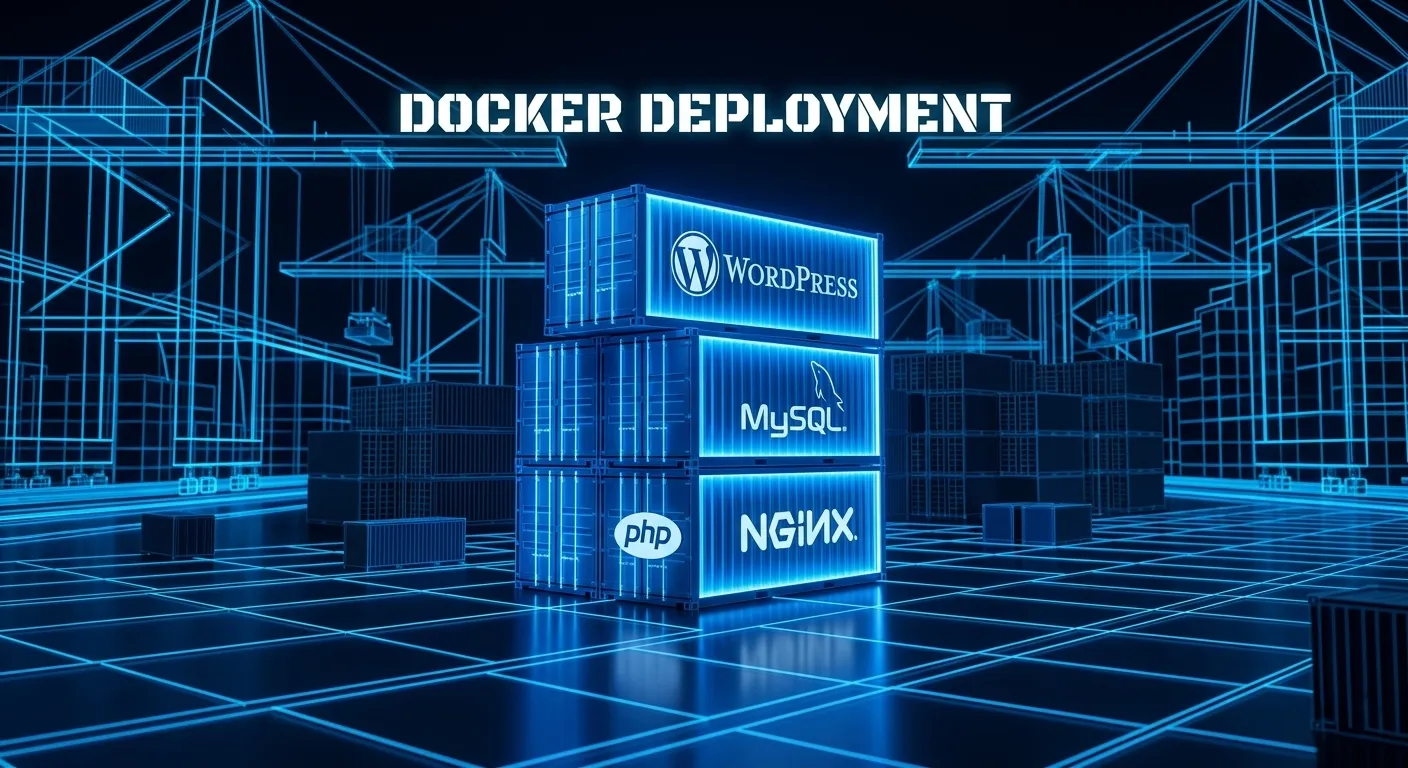
In a Docker setup, each component of the LEMP stack runs in its own isolated container. This allows you to scale the database separately from the web server.
- WordPress Container: Runs the PHP-FPM process and the WordPress core files.
- MySQL/MariaDB Container: Handles the data persistence.
- NGINX Container: Acts as the reverse proxy and handles SSL/HTTPS.
2. Creating the docker-compose.yml
This file acts as the blueprint for your stack. It defines the images, volumes (for data persistence), and the internal network that allows the containers to communicate.
Key Configuration Highlights:
- Volumes: You must map a local folder to
/var/www/htmlin the container. Without this, your themes and uploads will disappear every time the container restarts. - Environment Variables: Use these to pass database credentials (
WORDPRESS_DB_PASSWORD) securely to the WordPress container. - Restart Policy: Always set
restart: alwaysto ensure your containers reboot automatically if the VPS restarts.
3. Data Persistence and Named Volumes
One of the biggest mistakes in Docker is losing the database because a volume wasn’t mapped.
- Database Volume: Map the MySQL data directory to a named volume:
db_data:/var/lib/mysql. - File Volume: Map the
wp-contentfolder specifically if you want to keep the core WordPress files managed by the Docker image while you handle the custom code.
4. Integrating NGINX and Let’s Encrypt
To move from a “local” setup to a live one, you need a reverse proxy container.
- Nginx Proxy Manager: A popular choice for beginners to manage SSL certificates via a GUI.
- Custom NGINX Image: For advanced users, creating a custom NGINX container that links to the WordPress PHP-FPM socket over the Docker network provides the best performance.
5. Essential Commands for Deployment
Once your files are ready, management happens via the CLI:
- Start the stack:
docker-compose up -d(the-druns it in detached mode in the background). - View logs:
docker-compose logs -f wordpress(essential for debugging 500 errors). - Database Export:
docker exec [container_name] /usr/bin/mysqldump -u root -p[pass] [db_name] > backup.sql.